Practical use cases
Use image resizing when preparing phone photos and image uploads.
Before you start
Keep an untouched copy of the source file and check that its format is supported before starting.
Check output width and height, aspect ratio, sharpness and any platform size requirement
Step-by-step walkthrough
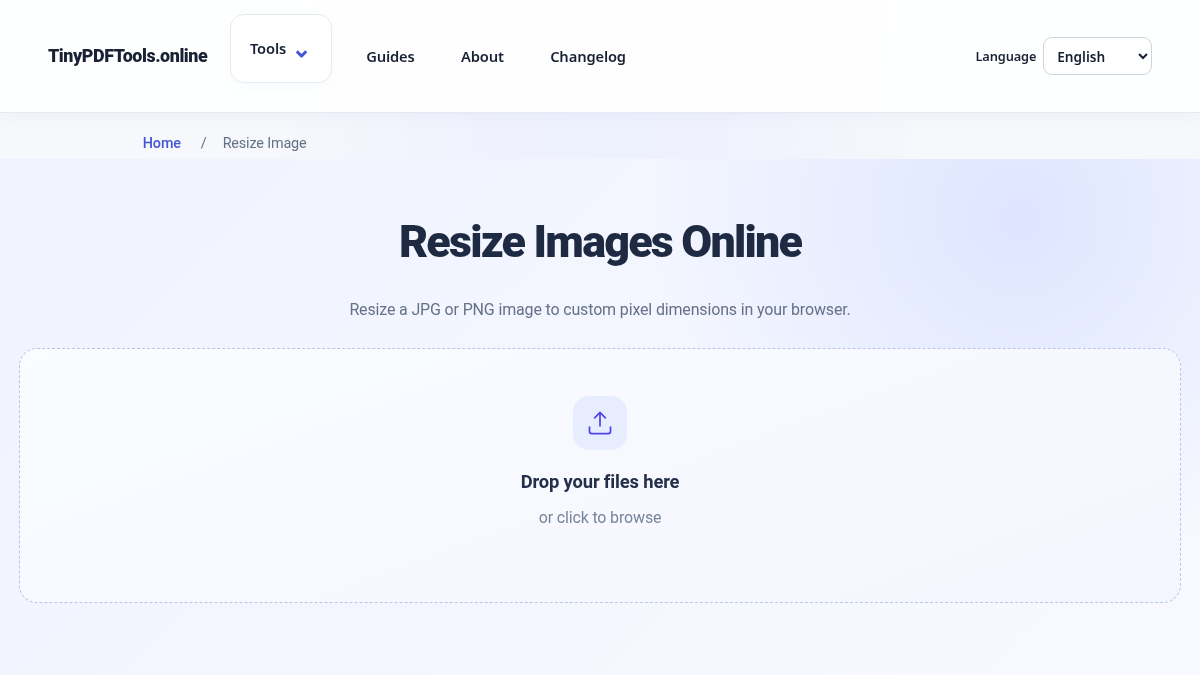
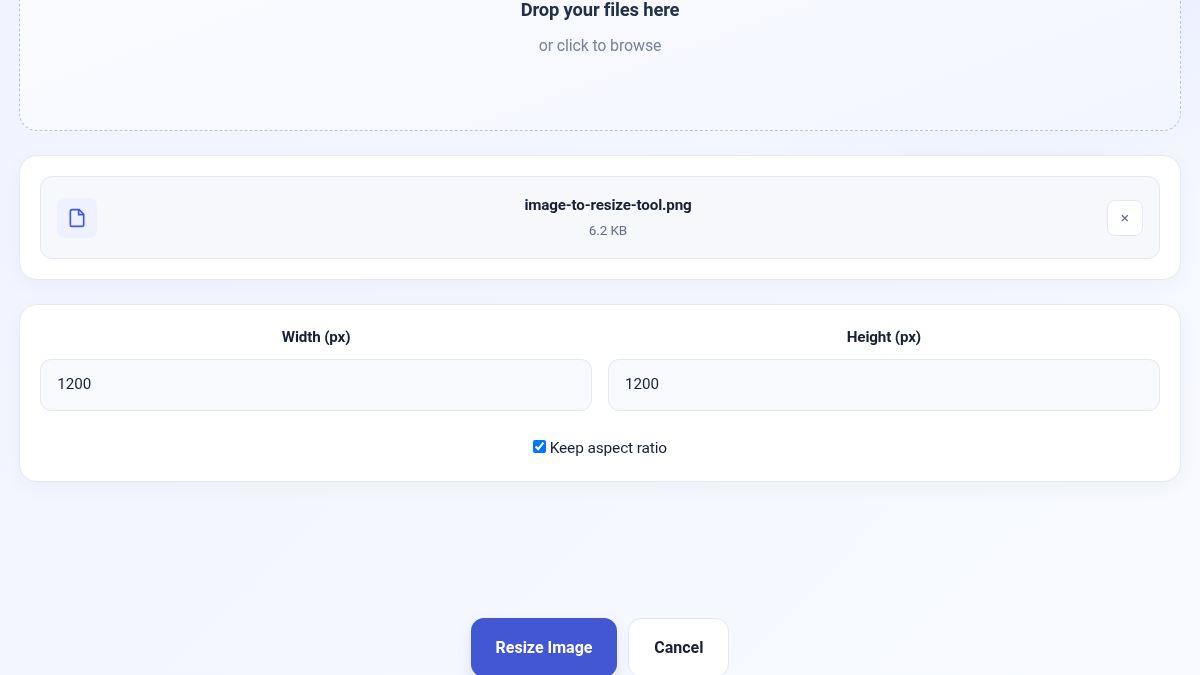
- Select the image and note its original width and height.
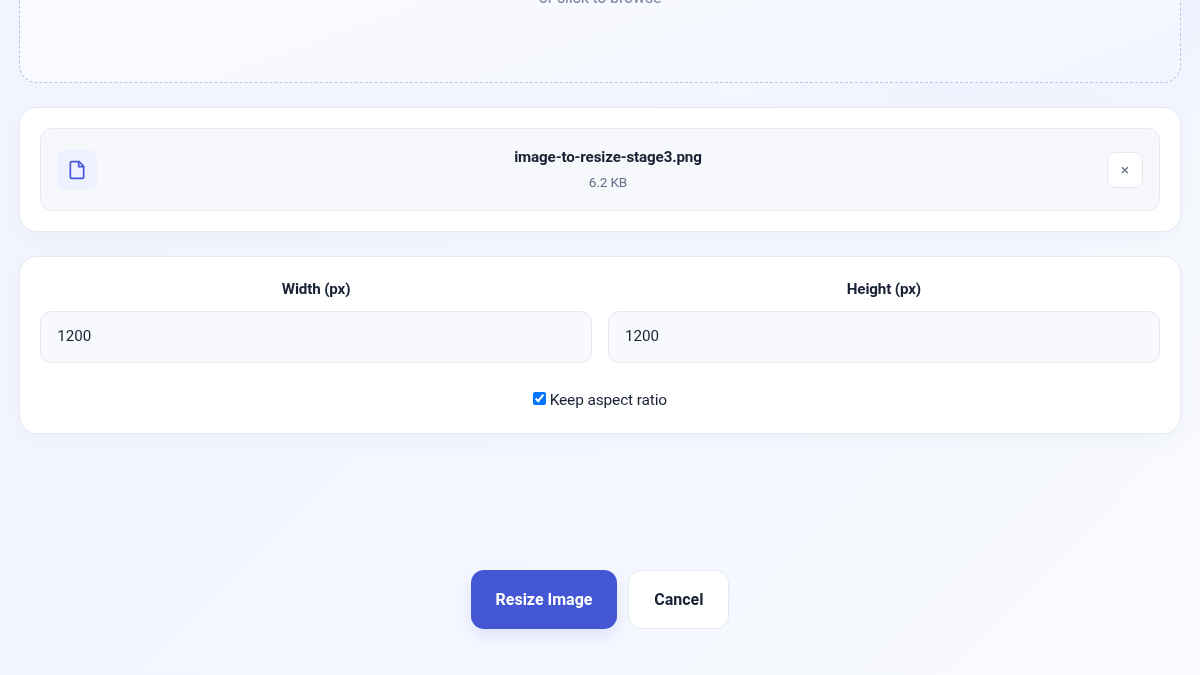
- Enter the target pixel dimensions and keep the aspect ratio when the whole image must remain visible.
- Export a resized copy in the required format.
- Check the actual pixel dimensions and sharpness before uploading it.
Tool screenshots
What to verify
- Check output width and height, aspect ratio, sharpness and any platform size requirement
- Download the result, open it in another viewer and compare it with the source.
- Open the downloaded file and confirm that it contains the expected result.
When to use Image Resize
Use image resizing to create an image with specific pixel dimensions for a website, form or upload requirement. Resizing changes dimensions and may affect sharpness.
Check the final pixel width and height, aspect ratio and clarity at the intended display size.
Limitations
This focused browser tool handles image resizing; it is not a substitute for a full-featured editor. Keep the original and verify the output before relying on it.
Resizing changes pixel dimensions and may resample detail; it is not the same as cropping or compressing
Frequently asked questions
What should I verify before sharing?
Open the downloaded image, check dimensions and orientation, and confirm that no edges are clipped.
Are colors guaranteed to match?
Color profiles and display settings can change appearance. Compare the output on the target device.
Why is the output file large?
Higher resolution and less compression increase file size. Balance detail against the size limit.
How can I avoid blurry results?
Choose sufficient pixel dimensions for the intended display or print size and inspect fine details at 100% zoom.
Will transparent backgrounds be preserved?
Transparency depends on the source and selected output format. PNG generally supports it; JPEG does not.
Which output settings matter for Resize Images Online?
Check image dimensions, file format, color and quality before downloading.
What should I verify after using Image Resize?
Check the final pixel width and height, aspect ratio and clarity at the intended display size.
Can resizing improve a low-resolution image?
Upscaling increases pixel dimensions but cannot recreate missing detail. Check sharpness at the final display size.
Related workflow
Read the guide: How to Resize Images Online Without Distorting Them