Practical use cases
Use PDF page cropping when preparing paper forms and scanned paperwork.
Before you start
Keep an untouched copy of the source file and check that its format is supported before starting.
Check every selected page for clipped stamps, signatures, page numbers and marginal notes
Step-by-step walkthrough
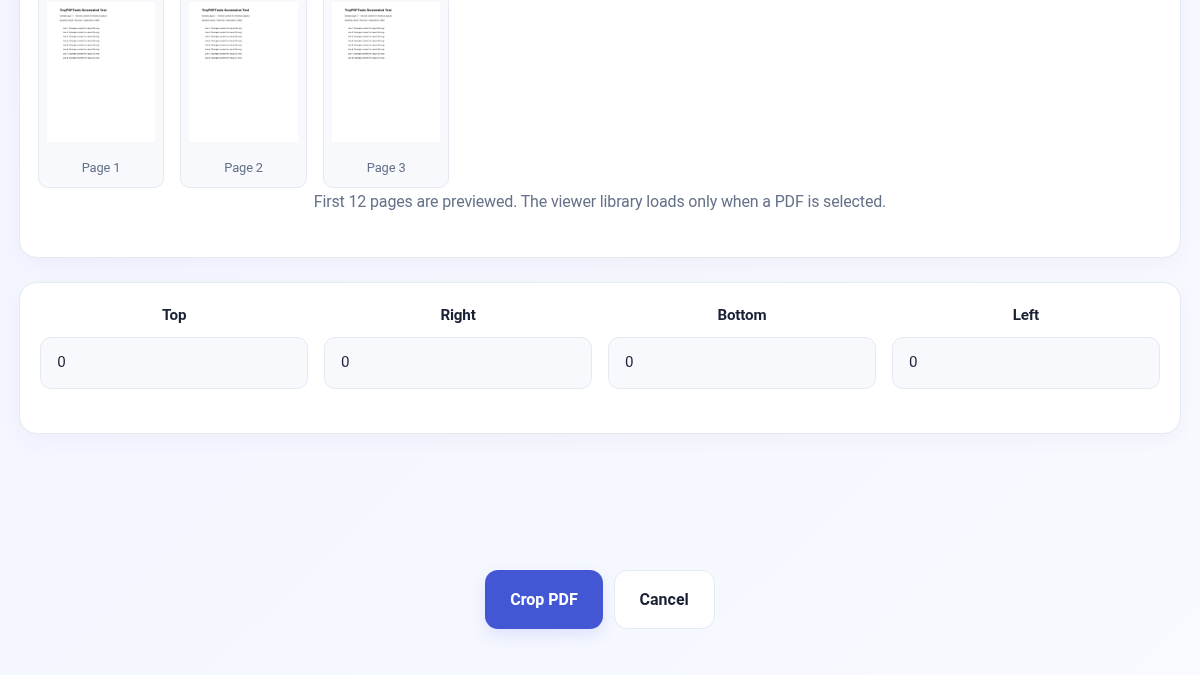
- Add the PDF and open the page thumbnails.
- Select the page or range, then adjust the visible crop box.
- Apply the crop to the intended pages and save a separate copy.
- Check every page edge for cut-off notes, stamps, signatures or page numbers.
Tool screenshots


What to verify
- Check every selected page for clipped stamps, signatures, page numbers and marginal notes
- Download the result, open it in another viewer and compare it with the source.
- Open the downloaded file and confirm that it contains the expected result.
When to use Crop Pdf
Use Crop PDF to trim page margins or remove unwanted outer areas without deleting the page itself. It changes the visible page area, not the text content.
Open several cropped pages and check that no text, signatures, stamps or page-edge details were cut off.
Limitations
This focused browser tool handles PDF page cropping; it is not a substitute for a full-featured editor. Keep the original and verify the output before relying on it.
Cropping changes the visible page area; it does not redact hidden content or securely remove data
Frequently asked questions
What should I verify?
Open representative pages and inspect headers, footers, annotations and edge content.
Can I restore the removed margins?
Use the original PDF; a cropped output may not retain recoverable off-page content.
Will page dimensions change?
Review the resulting page size and margins in a separate PDF reader.
Does cropping reduce page content permanently?
Cropping changes the visible page area in the output. Keep the original if hidden content may be needed later.
Can I crop several pages?
Check whether the selected crop applies to one page, a range or the full document before saving.
How do I choose the crop area?
Preview the page edges and confirm that no text, signatures, stamps or page numbers are cut off.
What should I verify after using Crop PDF?
Open several cropped pages and check that no text, signatures, stamps or page-edge details were cut off.
Does cropping erase content outside the visible page?
Cropping changes the visible page area; it does not necessarily remove the underlying content. Do not use it as a secure redaction method.
Related workflow
Read the guide: How to Crop PDF Pages and Remove Wide Margins