Practical use cases
Use adding text to a PDF when preparing contracts, forms and signed documents.
Before you start
Keep an untouched copy of the source file and check that its format is supported before starting.
Check text alignment, font size, line breaks and whether new text covers existing content
Step-by-step walkthrough
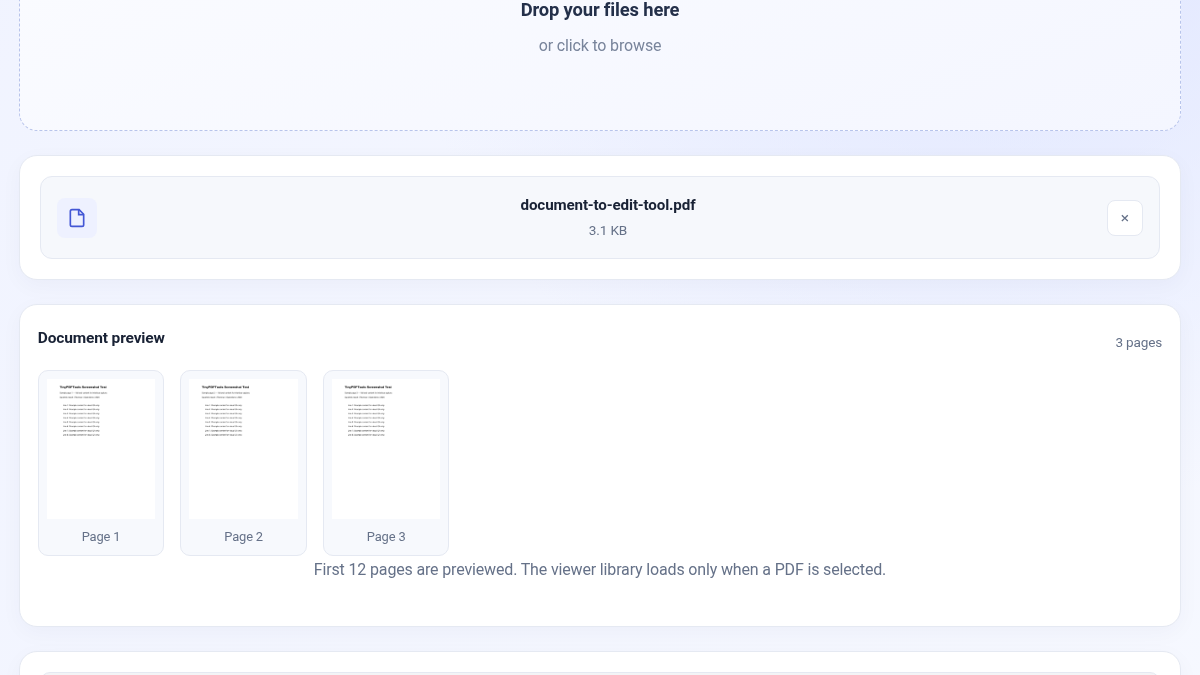
- Add the PDF and choose the Add Text control.
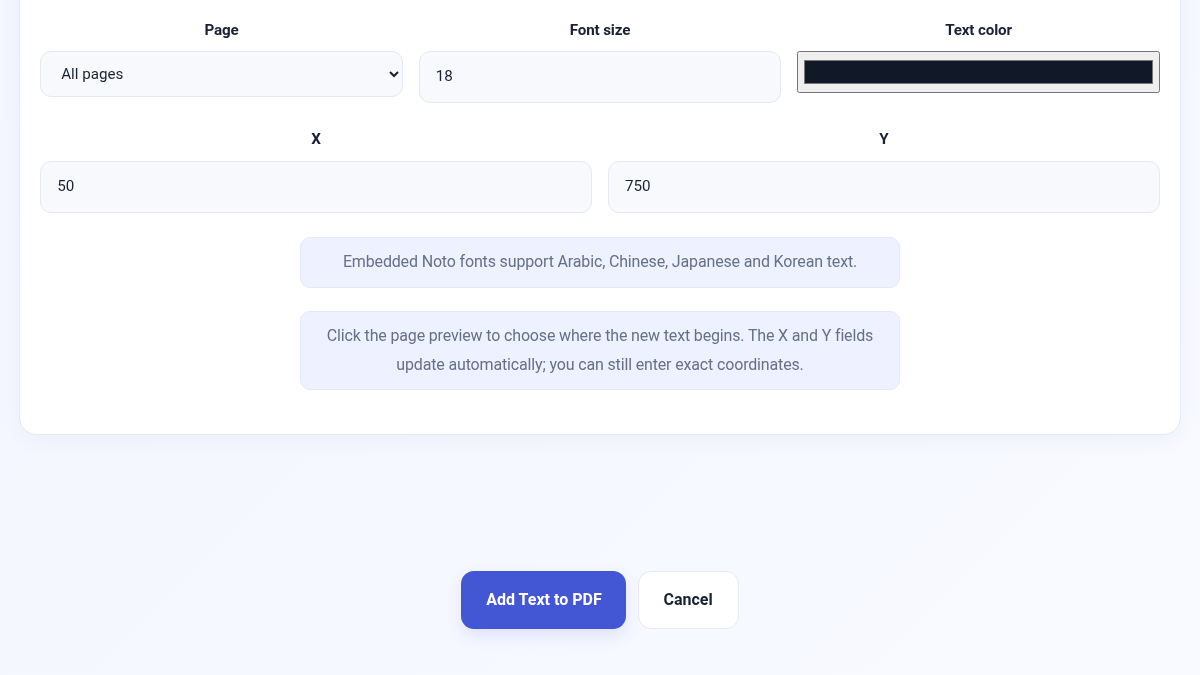
- Select the target page, click the position and enter the new text.
- Adjust font size and placement so the overlay does not cover existing content.
- Open the output and check the new text at normal and high zoom.
Tool screenshots

What to verify
- Check text alignment, font size, line breaks and whether new text covers existing content
- Download the result, open it in another viewer and compare it with the source.
- Open the downloaded file and confirm that it contains the expected result.
When to use Edit Pdf
Use this editor for supported in-place PDF edits such as adding or adjusting content exposed by the current editor. It is not a full desktop publishing replacement.
Reopen the downloaded PDF and inspect edited text, placement, line wrapping and any nearby content that could have shifted.
Limitations
This focused browser tool handles adding text to a PDF; it is not a substitute for a full-featured editor. Keep the original and verify the output before relying on it.
This adds visible text; it is not a full word processor and may not edit original text objects
Frequently asked questions
What should I verify after using Edit PDF?
Reopen the downloaded PDF and inspect edited text, placement, line wrapping and any nearby content that could have shifted.
Can I edit every element in the PDF?
No. Editing is limited to the controls and content types supported by this browser editor. Review the exported file for layout changes.