Practical use cases
Use PDF table extraction to Excel when preparing spreadsheets and tabular reports.
Before you start
Keep an untouched copy of the source file and check that its format is supported before starting.
Compare column boundaries, decimal separators, dates, merged cells and totals with the PDF
Step-by-step walkthrough
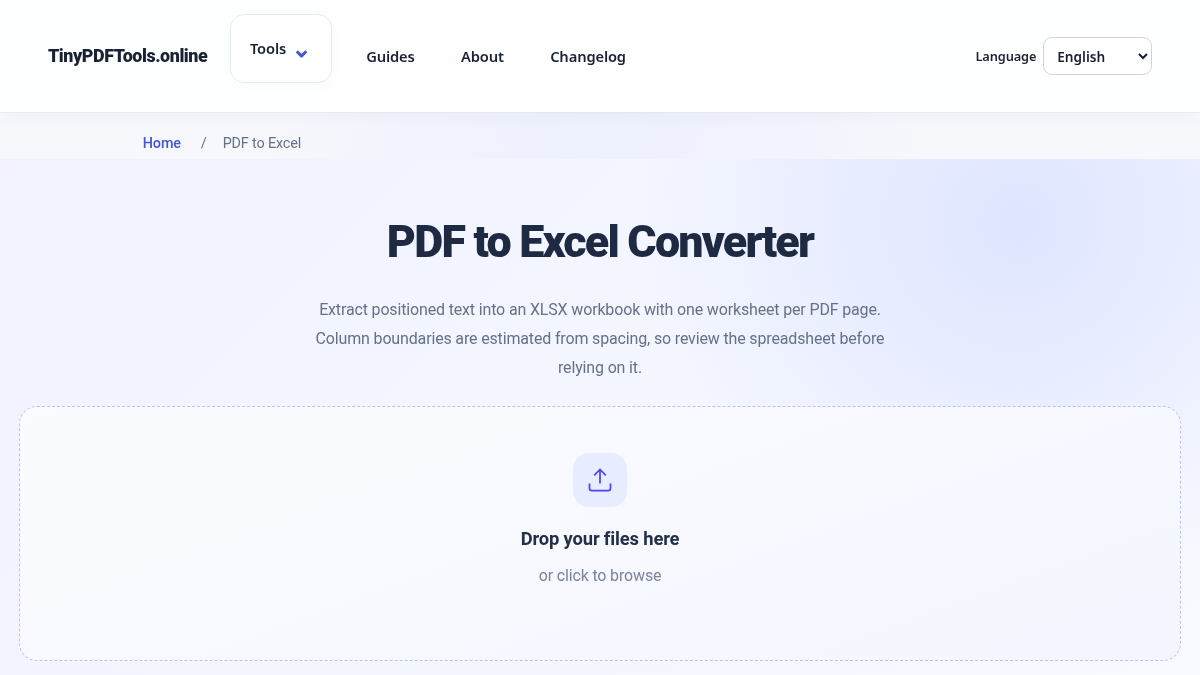
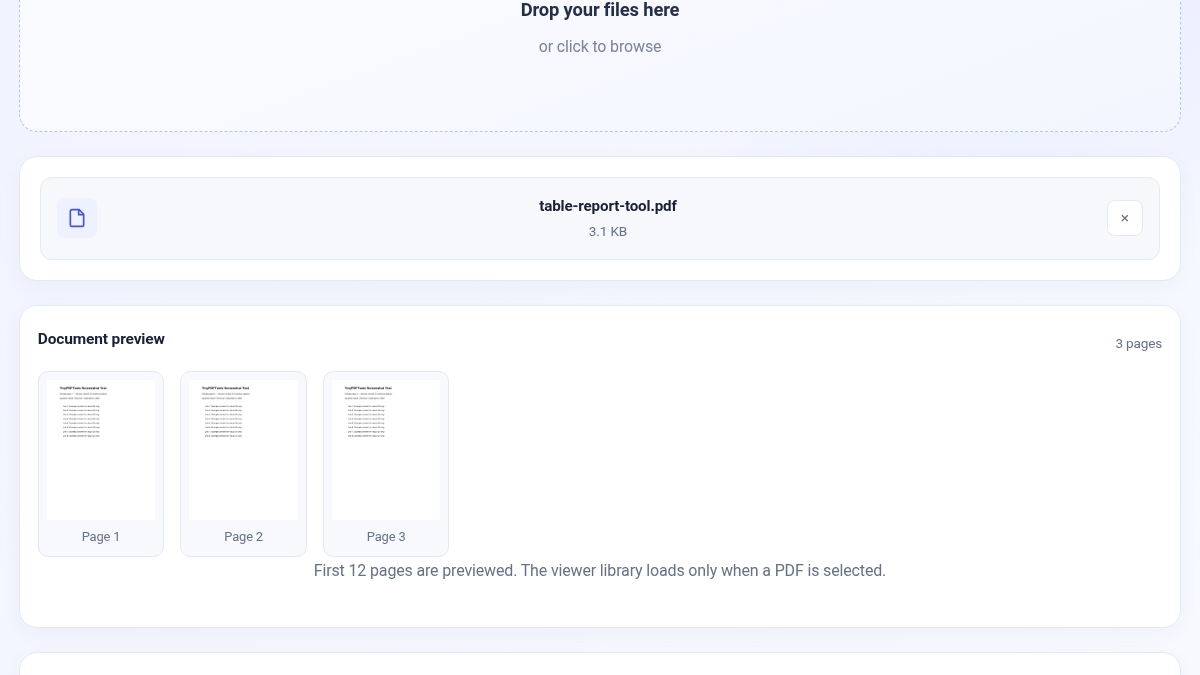
- Select a PDF with tabular content.
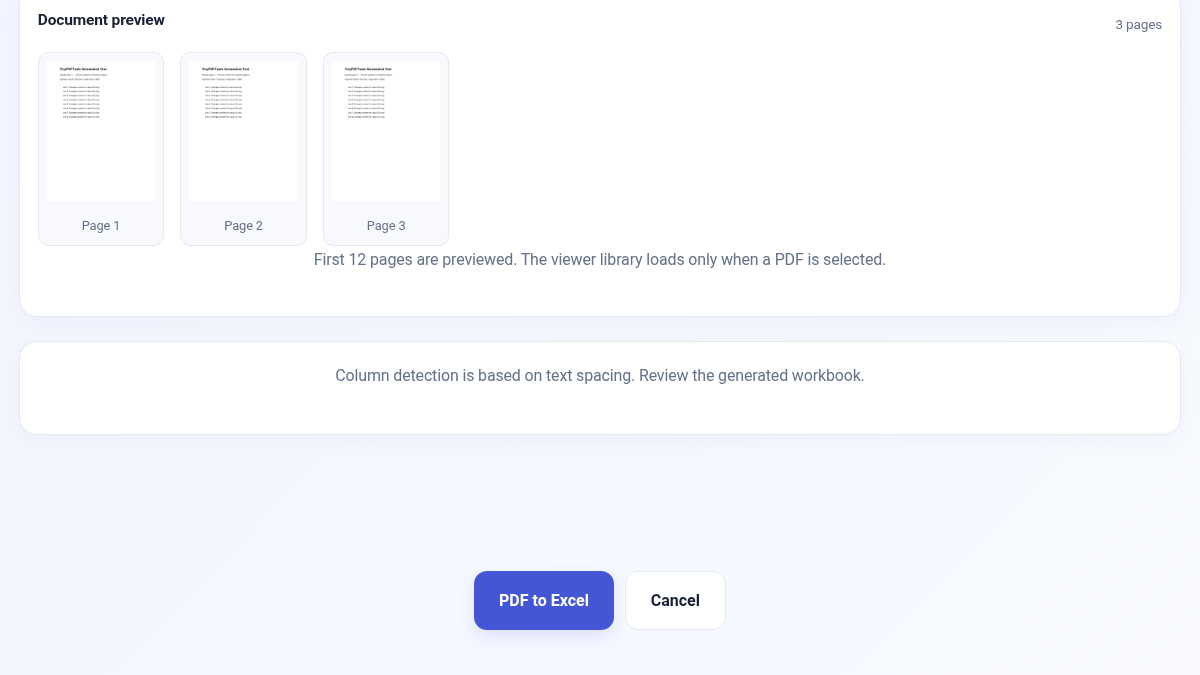
- Start table extraction and choose the spreadsheet output.
- Open the XLSX file in a spreadsheet application.
- Compare totals, dates, decimal separators and column alignment with the PDF.
Tool screenshots
What to verify
- Compare column boundaries, decimal separators, dates, merged cells and totals with the PDF
- Download the result, open it in another viewer and compare it with the source.
- Open the downloaded file and confirm that it contains the expected result.
When to use Pdf To Excel
Use PDF to Excel when a PDF contains tables that you want to continue working with in a spreadsheet. Reconstructed columns may need manual cleanup.
Compare row and column alignment, decimal separators, dates and totals against the original PDF before using the spreadsheet.
Limitations
This focused browser tool handles PDF table extraction to Excel; it is not a substitute for a full-featured editor. Keep the original and verify the output before relying on it.
A PDF does not always contain a true spreadsheet table; reconstructed cells may require cleanup
Frequently asked questions
What should I verify after using PDF To Excel?
Compare row and column alignment, decimal separators, dates and totals against the original PDF before using the spreadsheet.
Will the spreadsheet preserve the original table layout?
PDF tables must be reconstructed. Check column alignment, merged cells, dates and numeric totals before using the spreadsheet.