Practical use cases
Use exporting PDF pages separately when preparing paper forms and scanned paperwork.
Before you start
Keep an untouched copy of the source file and check that its format is supported before starting.
Check that each output corresponds to the intended page and retains the required page orientation
Step-by-step walkthrough
- Add the PDF and choose the option to export pages individually.
- Start the page-by-page export and wait for the files to be assembled.
- Download and extract the ZIP archive.
- Open several individual pages and verify numbering, orientation and file names.
Tool screenshots
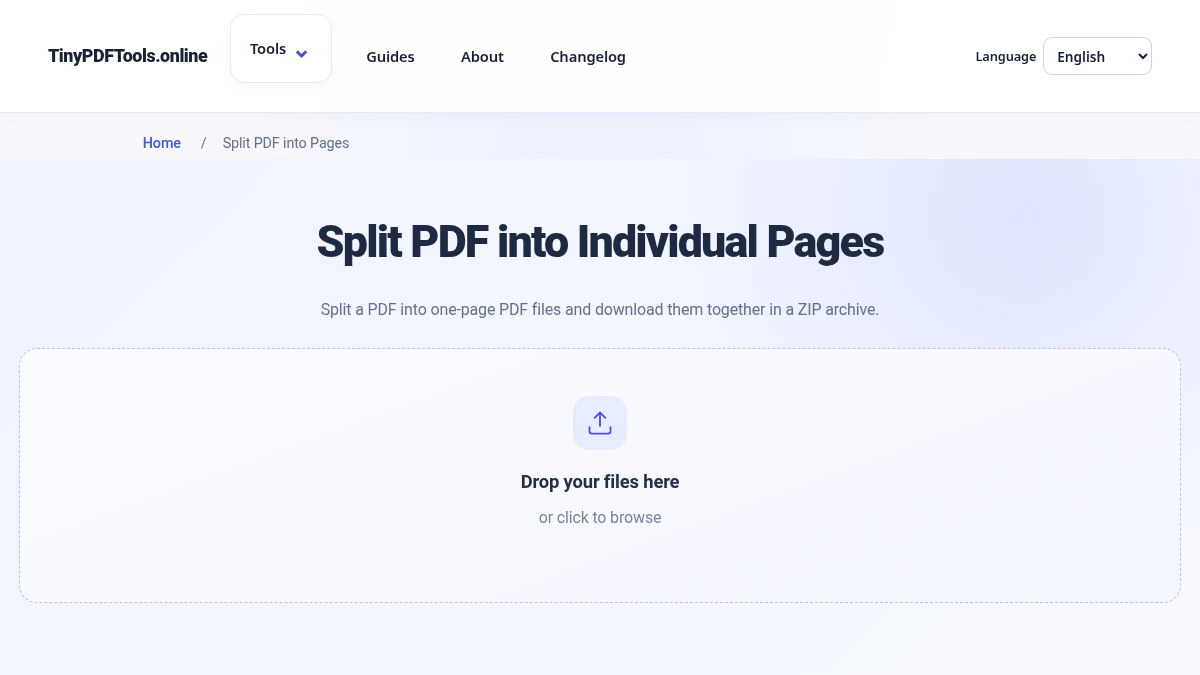
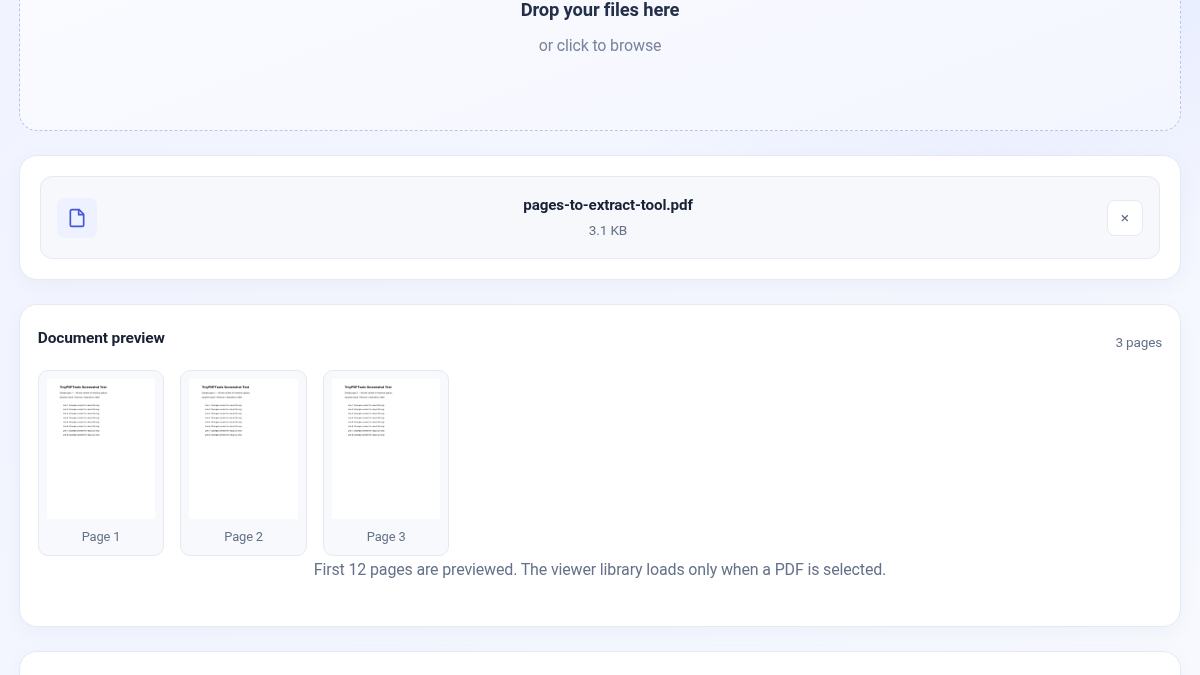
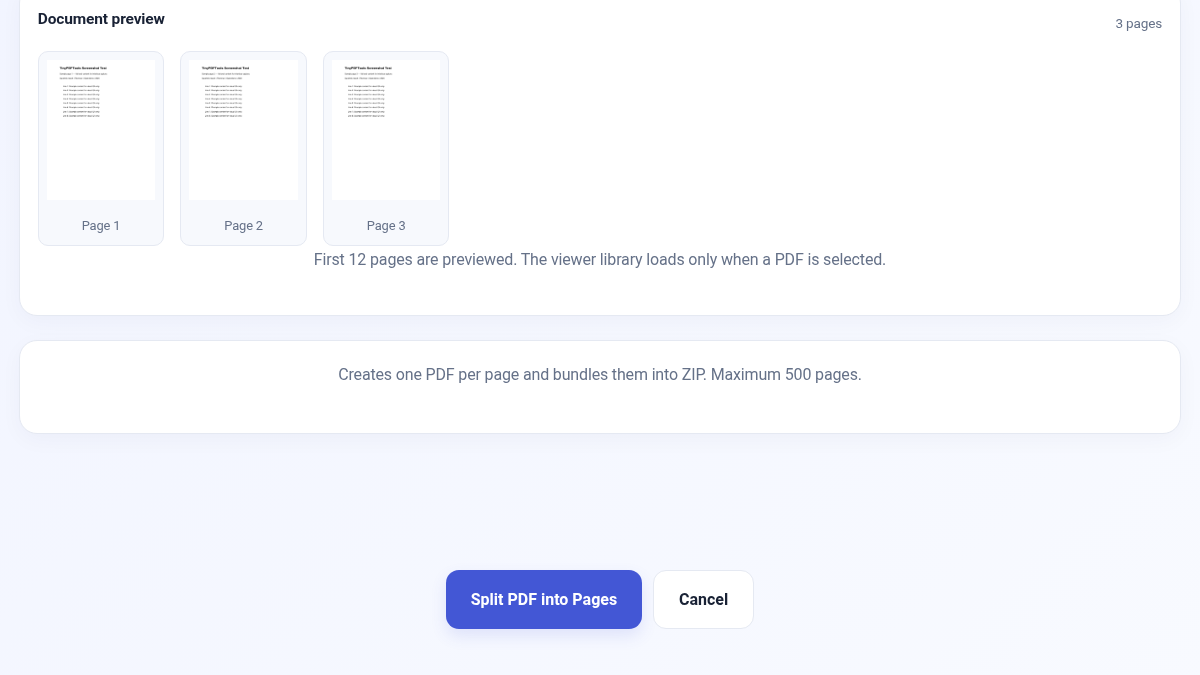
What to verify
- Check that each output corresponds to the intended page and retains the required page orientation
- Download the result, open it in another viewer and compare it with the source.
- Open the downloaded file and confirm that it contains the expected result.
When to use Split Pdf Pages
Use Split PDF Pages when you need selected pages extracted into separate PDF files. Choose the exact page numbers or ranges before processing.
Open each extracted file and confirm it contains only the selected pages in the expected order.
Limitations
This focused browser tool handles exporting PDF pages separately; it is not a substitute for a full-featured editor. Keep the original and verify the output before relying on it.
A large document can create many output files; confirm the ZIP contents before sharing
Frequently asked questions
What is the safest final check?
Compare page count and page order with the original and review every page that was changed.
Why might pages look different?
Mixed page sizes, rotation and existing annotations can affect the result. Inspect the full document.
Can I undo the change after download?
Keep the original PDF. The downloaded output should be treated as a separate edited copy.
Will annotations and form fields remain?
Open the output in another reader and test important annotations, links and form fields.
Can I apply Split PDF Pages selectively?
Review the page selection controls before processing; do not assume every operation applies to the entire document.
How do I verify Split PDF Pages on every page?
Check the first, middle and last affected pages, then inspect any page with a different orientation or layout.
What should I verify after using Split PDF Pages?
Open each extracted file and confirm it contains only the selected pages in the expected order.
Can I extract non-consecutive pages?
Use the page selection or range controls available in the tool, then open each output to confirm it contains only the intended pages.