PDF to Word Without Losing Arabic Text: What to Check
Convert Arabic PDF text with realistic expectations for right-to-left order, mixed Arabic and Latin characters, OCR and manual proofreading.
What this workflow actually does
Arabic text can be harder to convert than a simple left-to-right paragraph because letters connect, words flow right to left and numbers or Latin names may appear inside the same line. A PDF can also store text by visual position rather than a clean reading sequence. Text extraction may recover wording from some documents, but it does not promise perfect Arabic shaping, bidirectional ordering or layout reconstruction.
First determine whether the PDF contains selectable text or scanned page images. Selectable text may be extracted directly, while a scan needs OCR. Identify whether the page is Arabic-only or mixes Arabic with English, French, dates and digits. The correct path depends on how the document was created, not simply on the script visible on the page.
Decisions to make before processing
The practical purpose of pdf to word without losing arabic text: what to check is to solve the specific problem described here, not to make every kind of file behave the same way. Start with the original document and the receiving system’s requirements. File format, page count, source quality and the features a reader must retain all influence whether PDF to Word is the right first step.
Before choosing pdf to word for pdf to word without losing arabic text: what to check, separate mandatory requirements from preferences. A strict portal size or format rule is mandatory; a smaller file, identical layout or a particular visual style may be only a preference. Where the requirements conflict, ask the recipient which one takes priority rather than silently sacrificing content.
Step-by-step workflow
Step 1
Open the PDF to Word page and choose a working copy of the correct source file. Confirm its filename, page or image count and format before you begin pdf to word without losing arabic text: what to check. Keep the original in a separate folder so that an unexpected result can be compared or reversed.
Step 2
Read the available controls and compare them with the specific requirement described in this guide. For pdf to word without losing arabic text: what to check, select only the files, pages, output format or quality options required for the intended task; avoid changing unrelated settings simply because they are visible.
Step 3
For pdf to word without losing arabic text: what to check, run the operation and save the result as a new file. Avoid reusing the source filename if that could overwrite your only copy. If the browser reports an error or processing appears to stop, preserve the original and retry only after checking the file and available device memory.
Step 4
After pdf to word without losing arabic text: what to check, open the downloaded output in a separate PDF reader or image viewer. Compare the first, a representative middle section and the last page or image; inspect the special items called out in this guide rather than judging the result from a thumbnail alone.
Step 5
Before sharing the output, confirm that it matches the receiving organization’s current rules for file type, size, page count, quality and security. Record any manual corrections you made so that another copy of pdf to word without losing arabic text: what to check can be produced consistently.
A realistic planning example
A bilingual line containing an Arabic organization name followed by an English reference code can display in a confusing order if directionality is not set correctly. The fix may require right-to-left paragraph direction and separate text runs for the Latin code, not merely flipping the entire line. This is a formatting illustration, not a conversion benchmark.
The planning scenario for pdf to word without losing arabic text: what to check is not a measured TinyPDFTools result. Actual output depends on the source file, browser, device memory and selected settings. A defensible before-and-after claim requires retaining both files, recording the exact settings and documenting how readability or functionality was checked.
How to check the finished file
Proofread names, dates, amounts and identifiers character by character. Check connected Arabic letters, hamza forms, punctuation placement and digit order. Search for a known phrase in the DOCX and compare it with the PDF. A document can look tidy while its underlying reading order is wrong, so compare meaning as well as page appearance.
A successful download is only the start of quality control for pdf to word without losing arabic text: what to check. Reopen the output in a separate viewer, not just the browser’s result panel. Compare the beginning, a representative middle section and the end, then inspect any special content mentioned in the source such as forms, tables, signatures or multilingual text.
Do not overwrite the source during pdf to word without losing arabic text: what to check. A separate output lets you compare changes, return to the original after an unexpected result and produce a different version for another recipient. Keep the original until the recipient has accepted the new copy and any retention rules have been considered.
Troubleshooting and fixes
Problem 1: identify the cause
Arabic words appear reversed: check paragraph direction in a word processor with Arabic support and compare the extraction order with the source PDF.
Problem 2: protect quality
English codes move to the wrong side of a line: mixed-direction text may require separate runs or manual placement. Verify each identifier before submission.
Problem 3: confirm recipient rules
Scanned Arabic text is missing: run OCR with Arabic selected and use a clear scan. Correct recognition errors manually rather than assuming every character is accurate.
Limitations you should understand
The current PDF-to-Word converter is text-first and does not promise exact Arabic shaping, page layout, tables or image preservation. OCR can misrecognize joined letters and mixed-script lines. The OCR PDF tool indicates a 25-page maximum per run. Do not use machine-extracted Arabic as an unreviewed official transcript or legal record.
The limits of pdf to word without losing arabic text: what to check matter most when the file is evidence, an official record or a document that another person must edit. A correct-looking preview does not prove that links, forms, embedded attachments, text order or metadata were preserved. Keep the original and test the functions your workflow actually needs.
When a different method is safer
For pdf to word without losing arabic text: what to check, use pdf to word only when its documented operation matches the requirement. Choose the original authoring app for exact layout, a dedicated OCR editor for corrected transcription, or a certificate-capable signing service for verified signatures. If the output keeps losing essential detail, ask the recipient about an accepted alternate format rather than repeating a damaging process.
Screenshots of the product interface
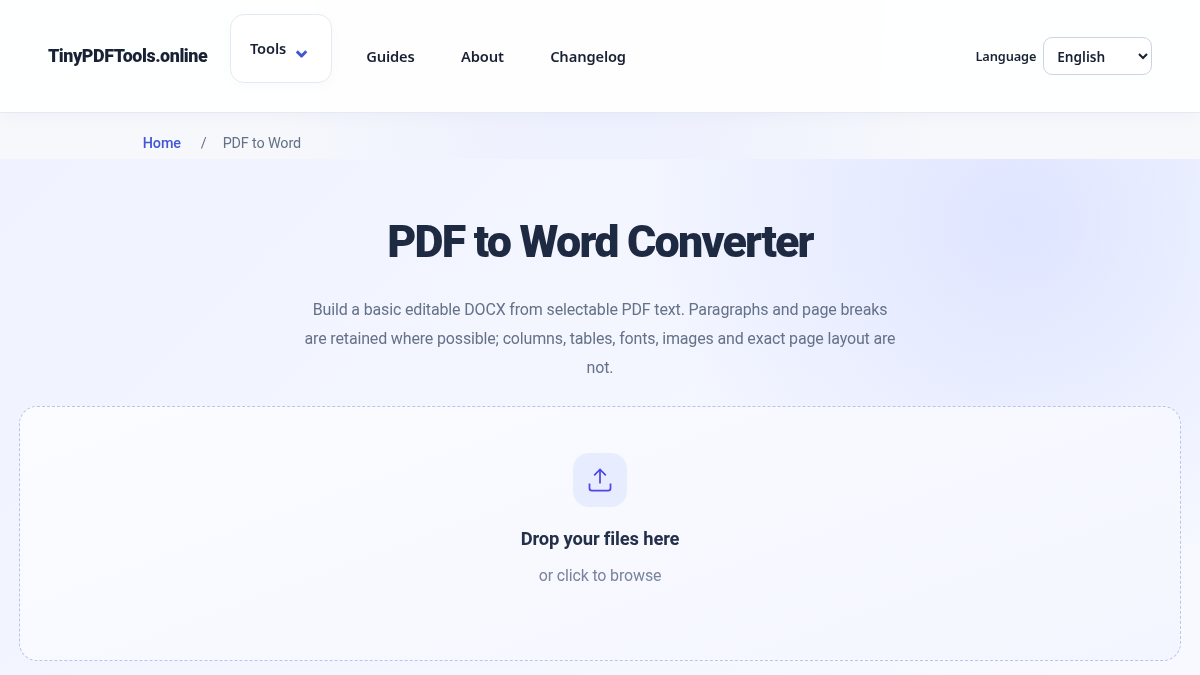
These first-party screenshots show interface states relevant to pdf to word without losing arabic text: what to check. They document the product interface only; they are not before-and-after test results, performance benchmarks or proof that every input produces the same output.
Frequently asked questions about pdf to word without losing arabic text: what to check
Will this converter preserve the original layout? (PDF to Word Without Losing Arabic Text: What to Check)
No. pdf to word without losing arabic text: what to check may preserve readable text but not every font, column, table, image position or page break. Use the source authoring app when page-for-page fidelity is mandatory. This answer is specific to pdf to word with arabic text.
Does a scanned file need a separate OCR step? (PDF to Word Without Losing Arabic Text: What to Check)
A scanned PDF often contains page images rather than selectable text. Run OCR first when editable words are required, then compare the recognized text with the original scan. This answer is specific to pdf to word with arabic text.
Why can columns or tables appear out of order? (PDF to Word Without Losing Arabic Text: What to Check)
Columns and tables can be read in an unexpected order because a PDF stores positioned text rather than a simple document flow. Check headings, rows and reading order after pdf to word without losing arabic text: what to check. This answer is specific to pdf to word with arabic text.
Which details should be proofread before editing? (PDF to Word Without Losing Arabic Text: What to Check)
Proofread names, numeric values, punctuation, headers, footers and right-to-left text. Pay particular attention to Arabic mixed with Latin product codes, email addresses or digits. This answer is specific to pdf to word with arabic text.
When should I use the original authoring application? (PDF to Word Without Losing Arabic Text: What to Check)
Use the original authoring application when a spreadsheet’s chart formatting, workbook formulas or complex page layout must remain exact. A basic browser conversion is not a substitute for a full publishing workflow. This answer is specific to pdf to word with arabic text.
Conclusion and final checklist
The reliable approach to pdf to word without losing arabic text: what to check is to begin with the recipient’s requirement, keep an untouched source and inspect the exported copy before sharing it. Confirm that the expected pages or images remain present, important details are readable and the file meets the stated format and security rules. Keep the original until the new copy is accepted.
Continue with PDF to Word after checking the requirements and limitations explained above.
Open PDF to Word →