如何裁剪 PDF 页面并去除宽边距
本指南介绍如何为纸质表格和扫描文件执行裁剪 PDF 页面,并说明操作流程、检查要点以及何时应选择其他方法。
适用于哪些场景?
准备纸质表格和扫描文件时,可以使用裁剪 PDF 页面。此工具针对单一任务设计,不能替代完整的文档编辑软件。
保留未修改的原始副本,并确认文件可以正常打开。开始前选择需要的范围、格式或质量。 请将结果与源文件比较,并遵循接收方的具体要求。
分步操作指南
- 选择原始文件,并确认它是正确的版本。
- 设置此任务所需的选项,避免使用超过实际需要的强力设置。
- 开始处理,在浏览器完成处理前保持此标签页打开。
- 下载结果,在另一个阅读器中打开并与原文件比较。
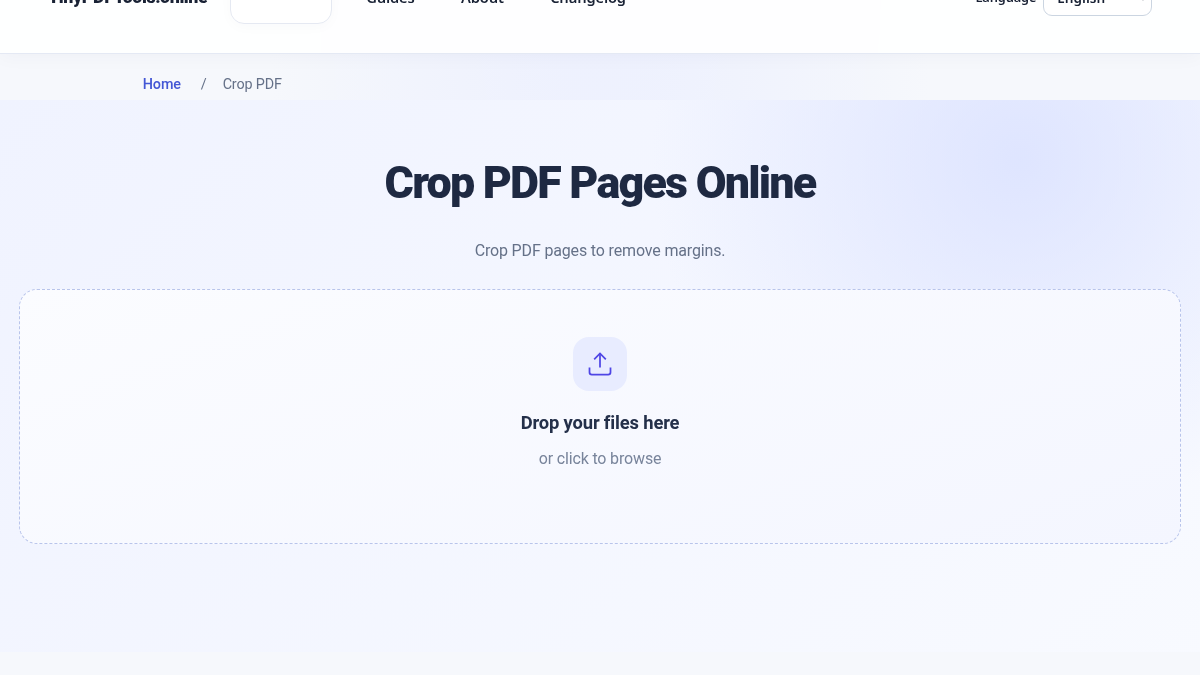
工具界面截图
需要检查的内容
检查页面顺序、内容、尺寸以及此任务中特别重要的细节,并使用第二个阅读器复核。
检查页面顺序、内容、尺寸以及此任务中特别重要的细节,并使用第二个阅读器复核。
哪种方式更合适?
浏览器工具适合快速完成单项任务。桌面 PDF 或 Office 软件提供更多控制;若需修改源文件,原始应用通常更合适。
浏览器工具适合快速完成单项任务。桌面 PDF 或 Office 软件提供更多控制;若需修改源文件,原始应用通常更合适。
使用限制
此浏览器工具专用于裁剪 PDF 页面,不能替代完整编辑器。请保留原件并在使用前核对结果。
请将结果与源文件比较,并遵循接收方的具体要求。
常见问题
When should I use another method for 如何裁剪 pdf 页面并去除宽边距?
Use desktop software or the original authoring application when you need advanced controls, batch processing or exact source fidelity.
What are common reasons the workflow fails?
Unsupported source features, damaged files, missing fonts and browser memory limits can affect processing.
How do I know the result is acceptable?
Open the downloaded file in a separate reader and inspect the pages or content that matter most.
Which settings affect the result most?
The source document, page count, embedded images, fonts and selected output settings have the greatest effect.
What should I prepare before 如何裁剪 pdf 页面并去除宽边距?
Keep an untouched copy, confirm the source format and identify any required size, quality or layout constraints.
What is the main goal of 如何裁剪 PDF 页面并去除宽边距?
The goal is to complete the specific 如何裁剪 pdf 页面并去除宽边距 task while preserving the information needed in the final file.
本指南介绍如何为纸质表格和扫描文件执行裁剪 PDF 页面,并说明操作流程、检查要点以及何时应选择其他方法。
打开工具: 裁剪PDF页面 →